AI for Excel Data Analysis in 2026: The Best Tools Beyond Copilot
Copilot is fine for summaries and formulas. For real analytical work on Excel files — cleaning, modeling, caveated reports — you need a tool built for analysis, not a chat assistant. Here is the 2026 guide.
- Copilot in Excel — best for formula help and summaries of existing workbooks.
- ChatGPT with Advanced Data Analysis — shallow but useful for one-off questions on an xlsx file.
- PlotStudio AI — best for real analysis on Excel files. Runs the full analyst workflow locally, profiles the workbook, exports a reproducible notebook.
- Power BI with Copilot — the right path if you need dashboards, not reports.
What Copilot Does Well (And What It Doesn’t)
Microsoft Copilot in Excel is excellent at three things: writing formulas from natural language, summarizing what a dashboard or pivot table shows, and answering one-line questions about data already in the grid. For those jobs it is the fastest tool available — it lives inside Excel, understands your model, and respects enterprise compliance.
What Copilot does not do: build an analysis from scratch. If you hand it a raw dataset, it can help you clean and chart it step by step, but it won’t autonomously profile, classify missingness, run comparison groups, engineer features, or document limitations. That’s the analyst workflow — and it’s a different category of tool.
Why ChatGPT Is a Partial Answer
ChatGPT Advanced Data Analysis reads .xlsx files and runs Python in a sandbox. For a one-off question — "what are the top 10 SKUs by revenue?" — it’s as fast as Copilot and less tied to the Microsoft stack. But the same gaps apply as on CSV files: no profiling, no cleaning documentation, no limitations section, and the Python lives in a sandbox you can’t re-run tomorrow.
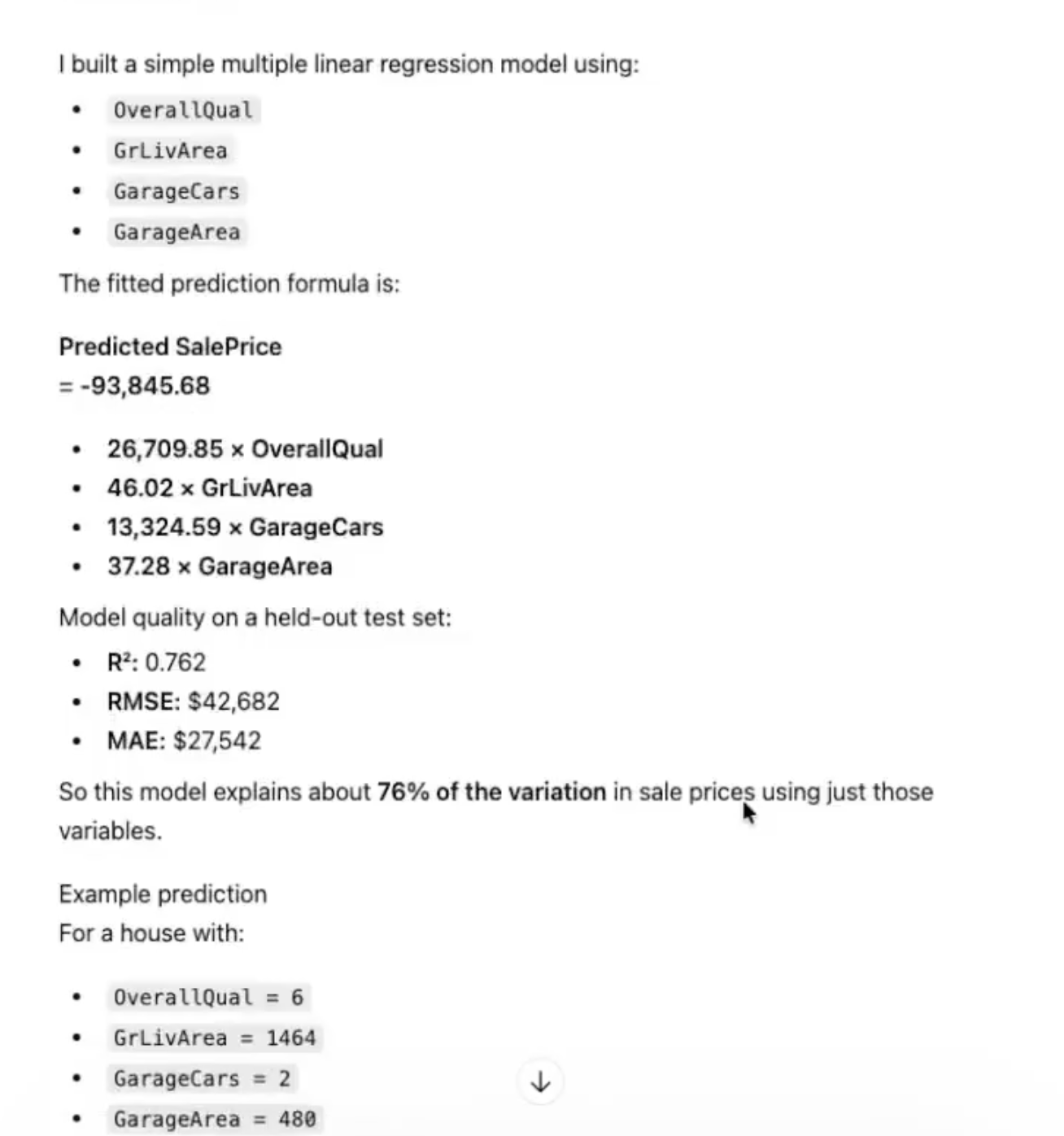
What a Real Analyst Tool Does on an Excel File
An agentic analytics tool like PlotStudio treats an xlsx upload the same way a human analyst would: profile it first, classify missingness, audit each sheet, then run a multi-step investigation with documented cleaning, proper feature engineering, and an explicit limitations section. The output is a written report, not a chat transcript. Every claim is backed by reproducible code that exports to a Jupyter notebook.
How to Pick
- You want a formula or a summary of an existing sheet: Copilot in Excel.
- You want a one-off chart or calculation: ChatGPT.
- You want a real analysis report you can hand to a stakeholder: PlotStudio AI.
- You need a dashboard shared across a team: Power BI with Copilot.
- Your workbook contains sensitive data: PlotStudio AI (the only local-first option on this list).
The test for "is Copilot enough?" is simple — would you bet your job on the answer without re-verifying it? If no, you’re looking for a real analyst tool, not a chat assistant.
For Large or Multi-Sheet Workbooks
Modern Excel analysis tools handle multi-sheet workbooks, but quality varies. Claude’s 1M-token context window is the best-in-class for workbooks with many linked sheets. PlotStudio loads each sheet as a separate analytical unit with per-sheet profiling. Copilot is fine for questions on the active sheet but can lose context across complex workbooks.
Analyze Excel files like an analyst would
Free desktop trial. Works with xlsx files. Runs locally on your machine.
Download PlotStudio AI